
Benefits of using a Docking Solution
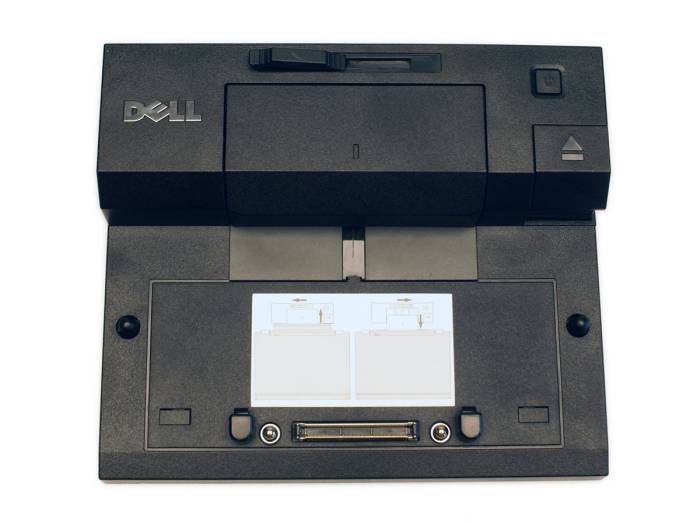
By using a docking station on a desk with regular access to additional storage, printers and other peripherals, you can gain the benefits of a desktop computer without sacrificing the portability of your notebook system. Some docks can also be attached to other peripherals, such as a monitor stand, giving you the freedom to set up your workspace in a configuration that works best for you. The access to a greater number and variety of connector ports, for example, will allow you to use a number of external monitors connected to your notebook system through the ports on the dock. You can plug up additional peripherals using these additional USB ports as well.
Note: Docking stations are also known as Port replicators and Docks. People using these terms are talking about a peripheral that gives a notebook system access to a greater number and variety of connector ports that exist on the notebook system alone.
You can connect/dock or disconnect/undock your notebook without first powering off your system or even logging out of Windows. This method is known as hot docking. There's also no need to create docked or undocked profiles on your system; when the e-series changed to a USB docking connection your operating system will automatically recognise the connected devices and adjust accordingly.
Any dock released since the E-Port II dock will have DisplayPort 1.2 as standard, please check out the article below if you're looking to get the most out of this standard:
How to Configure U2415 Monitor Daisy Chaining on Intel HD Graphics
Docking Peripheral Features
The following drawers contain information on the various features available on the various docks currently available for Latitude and Precision Mobile systems. Please click on the drawer of the docking station type you want to show the information within.
| Condition | Refurbished previously used laptop in Grade A Condition |
|---|---|
| Weight | 3 lbs or less |